How to Compress a PDF Without Losing Quality (Free Online Guide)
How to Compress a PDF Without Losing Quality
PDF files are widely used for sharing documents, business reports, school assignments, invoices, scanned documents, and application forms. However, large PDF files can be difficult to upload, email, or share when a website has a file-size limit.
The good news is that you can often reduce the size of a PDF without noticeably affecting its readability or appearance. In this guide, you will learn how PDF compression works, how to compress PDF files online for free, and how to maintain the best possible quality.
What Does PDF Compression Mean?
PDF compression is the process of reducing a PDF file's size so that it takes up less storage space and can be uploaded or shared more easily.
A PDF may contain high-resolution images, embedded fonts, scanned pages, unnecessary metadata, and other elements that increase its size. Compression optimizes these elements to create a smaller file.
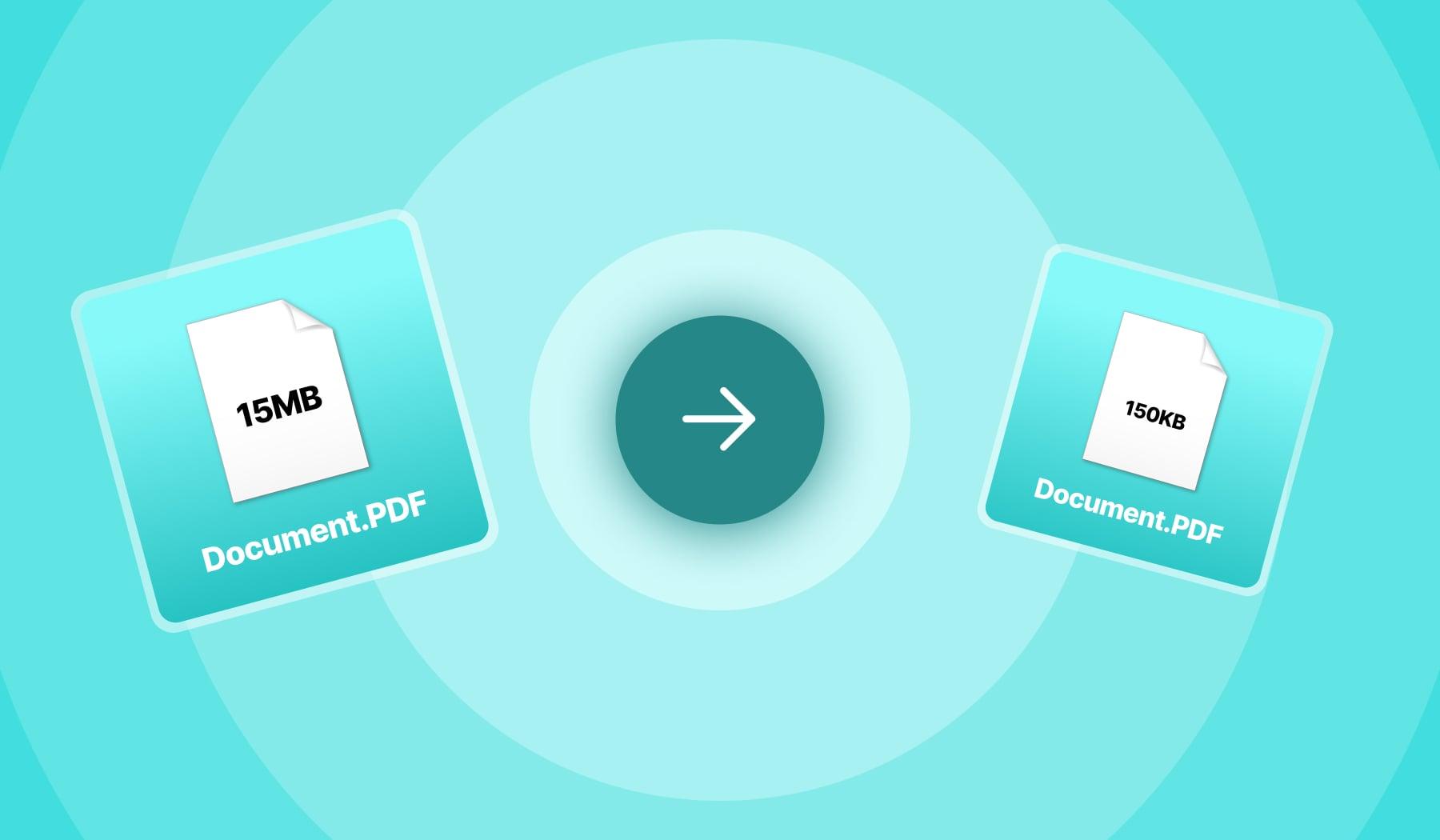
For example, a PDF that is 15 MB might be reduced to 5 MB or less, depending on its contents and the compression method. Results vary from file to file.
Can You Compress a PDF Without Losing Quality?
Yes, in many cases. However, the result depends on the original PDF and the compression settings.
There are two common approaches:
1. Lossless compression
Lossless compression reduces file size without discarding information. It may optimize embedded resources, document structure, and other data. The amount of reduction depends on how the original PDF was created.
2. Lossy compression
Lossy compression can reduce the file size more significantly by lowering image resolution or image quality. This may be suitable for documents that contain large photographs, but excessive compression can make text and images look blurry.
If you need to preserve document quality, start with lossless optimization or a high-quality compression setting.
How to Compress a PDF Online for Free
Follow these simple steps to reduce your PDF file size.
Step 1: Choose Your PDF File
Locate the PDF document on your computer or mobile device. Before uploading it to any online service, make sure it does not contain confidential information that should remain private.
Step 2: Open a PDF Compression Tool
Visit FreeToal.com and look for a PDF compression tool. If a PDF compressor is available on the website, open it to begin.
Step 3: Upload Your PDF
Select your PDF file and wait for it to finish uploading. The processing time depends on the file size, your internet connection, and the tool you use.
Step 4: Select the Compression Level
If the tool provides compression options, choose a lossless or high-quality setting to help preserve the original appearance. A stronger compression setting may produce a smaller file but can reduce image quality.
Step 5: Compress and Download
Start the compression process. Once it finishes, download the optimized PDF.
Step 6: Check the Final Document
Open the compressed PDF and check the text, images, page layout, links, and important details. Compare the new file with the original before submitting or sharing it.
Tip: Do not delete the original PDF until you have confirmed that the compressed copy looks correct.
Best Ways to Reduce PDF File Size Without Blurring Text
If your goal is to make a PDF smaller while preserving its quality, try these techniques.
1. Optimize Large Images
Images often account for a large portion of a PDF's file size. Optimizing oversized images can help reduce the document's size without noticeably affecting its appearance.
For documents that will be viewed on screens, moderate image resolution may be sufficient. Documents intended for professional printing may require higher resolution.
2. Remove Unnecessary Metadata
Some PDFs contain extra metadata, thumbnails, or other information that is not required for everyday viewing. Removing unnecessary data can sometimes reduce file size.
Always retain information needed for document management, accessibility, signatures, or compliance.
3. Avoid Excessive Image Compression
Very aggressive compression can introduce visible artifacts, blurry photographs, or difficult-to-read scanned text. Use a higher-quality setting if the document contains small text, charts, diagrams, or detailed images.
4. Optimize Scanned Documents
Scanned PDFs can be particularly large because every page may be stored as an image.
If appropriate, use an efficient scan resolution, remove blank pages, and apply suitable image compression. If you need searchable text, consider OCR (optical character recognition), which converts text in scanned images into searchable text.
Always verify that important text remains readable after optimization.
5. Use the Right PDF Export Settings
If you are creating the PDF yourself, review the export settings in the original application. Choosing suitable image resolution, font embedding, and optimization settings can help prevent unnecessarily large files.
How to Compress a PDF on Windows
You can reduce PDF file size on a Windows computer by using a PDF optimization application or a trusted online PDF compressor.
-
Open the PDF optimization tool.
-
Import the PDF document.
-
Choose an appropriate compression or optimization setting.
-
Save the compressed version under a new filename.
-
Open the new PDF and check its quality.
Saving a new copy ensures that your original document remains available if you need it.
How to Compress a PDF on Android or iPhone
You do not necessarily need a computer to compress a PDF. A phone or tablet can handle the task using a compatible online service or PDF application.
-
Open your browser.
-
Visit a PDF compression service.
-
Select the PDF from your files.
-
Choose the desired compression setting, if available.
-
Download the compressed document.
-
Open the file and confirm that it is readable.
For sensitive documents, consider an offline application instead of uploading the file to an online service.
Why Is My PDF Still Large After Compression?
Sometimes, compressing a PDF does not reduce its size very much. This can happen for several reasons:
-
The PDF has already been optimized.
-
The document contains many high-resolution photographs.
-
Each scanned page is stored as a large image.
-
The file contains embedded fonts or other resources that need to be preserved.
-
The compression tool uses conservative settings to maintain quality.
If the file remains too large, try a different optimization method or review the images inside the document. Avoid repeatedly compressing the same file with increasingly aggressive settings because this may reduce quality.
Frequently Asked Questions
Does compressing a PDF reduce its quality?
Not necessarily. Lossless compression can preserve the original information, while lossy compression may reduce image quality. Always inspect the resulting document.
How can I reduce a PDF from 10 MB to 2 MB?
The result depends on the document's contents. A PDF containing large images may be reduced substantially, while an already optimized text document may not shrink much. Try image optimization and compare different compression settings.
Is it safe to compress PDF files online?
It depends on the service and its privacy practices. Avoid uploading sensitive financial, medical, identity, or confidential business documents to an unfamiliar website. Use a trusted offline application when privacy is important.
Can I compress a PDF without installing software?
Yes. Browser-based PDF compressors can work without installing a desktop application, provided the service supports your file and device.
Will compression affect PDF text?
Lossless optimization generally preserves text. However, if pages are converted into images or heavily compressed, text may become less clear or searchable. Check the output carefully.
Conclusion
Compressing a PDF can make it easier to email, upload, store, and share. For the best results, start with lossless optimization, use appropriate image settings, and avoid excessive compression.
Whether you are preparing a school assignment, business report, scanned document, or application form, always check the compressed file before sending it.
Visit https://freetoal.com/tools/pdf-compressor to explore free online tools that can help simplify your everyday digital tasks.