How to Remove Image Backgrounds Online for Free (Step-by-Step Guide)
How to Remove Image Backgrounds Online for Free (Step-by-Step Guide)
Removing an image background is easier than ever. Whether you want to create a professional profile picture, design a product photo for your online store, make a transparent logo, or prepare images for social media, you no longer need expensive software to get started.
With free online image tools, you can remove unwanted backgrounds directly from your browser without installing complicated editing programs.
In this guide, you will learn how to remove image backgrounds online for free, which images work best, and how to use transparent images for websites, business, and social media.
What Does Removing an Image Background Mean?
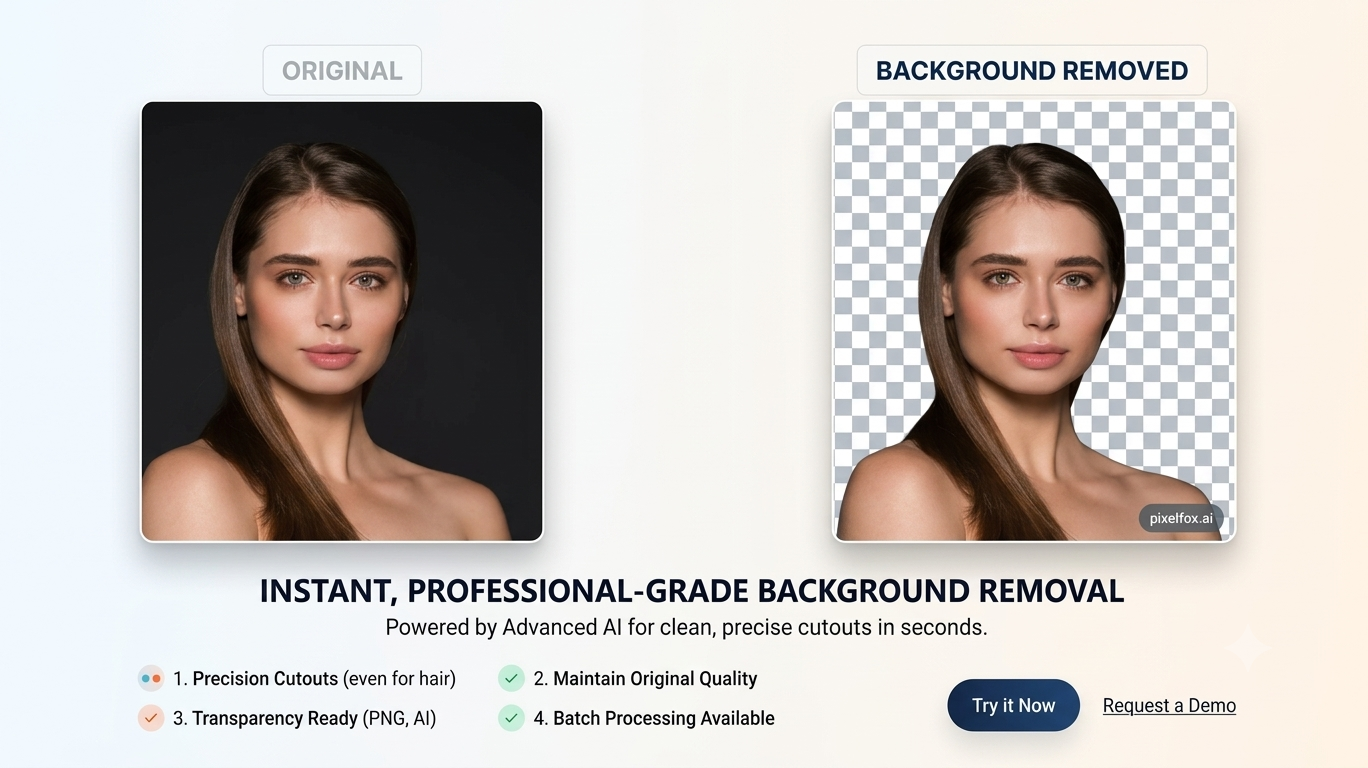
Removing an image background means separating the main subject of a picture from its surroundings. The subject could be a person, product, logo, animal, or any other object.
After removing the background, you can make it transparent or replace it with a different color or image.
For example, you can transform a product photograph taken on a messy table into a clean product image with a white or transparent background. Similarly, you can remove the background from a portrait to create a professional profile picture.
How to Remove Image Backgrounds Online for Free
Follow these simple steps to get started.
Step 1: Choose Your Image
Select the image you want to edit from your computer or mobile phone.
For better results, choose an image with a clearly visible subject, good lighting, and a reasonable level of contrast between the subject and its background.
Common image formats include JPG, JPEG, and PNG. Check the supported formats and file-size limits of your chosen tool before uploading.
Step 2: Open an Online Background Removal Tool
Open an online image editing or background removal tool, such as the image tools available on FreeToal.
Choose a background removal feature if one is available. Follow the instructions displayed by the tool to upload your image.
Tip: If you are using FreeToal, start from the website's image tools section and select the relevant tool. Features and supported formats may vary by tool.
Step 3: Remove the Background
If the selected tool offers automatic background removal, start the process and let it detect the main subject.
Some tools use artificial intelligence to identify people and objects. Others provide manual selection, erasing, or masking features.
Review the result carefully, especially around hair, fingers, transparent objects, and other detailed edges.
Step 4: Check the Result
Before saving your image, zoom in and inspect the edges.
Make sure important parts of the subject have not been accidentally removed. If editing controls are available, correct any unwanted gaps or leftover background areas.
A clean result will look more professional when used on a website, product listing, presentation, or social media post.
Step 5: Download Your Image
When you are satisfied with the result, download the edited image.
Choose PNG if you need a transparent background and the tool supports transparency. JPG generally does not preserve transparent areas, so transparent sections may be replaced with a solid color.
Your background-free image is now ready to use.
Best Uses for Background-Free Images
Removing backgrounds can help with many everyday tasks.
1. Product Photography for Online Stores
Online sellers can use clean product images to make their listings look more consistent. Removing distracting backgrounds helps customers focus on the product.
2. Professional Profile Pictures
A background-free portrait can be placed against a plain background for a cleaner profile photo, résumé, or business website.
3. YouTube Thumbnails and Social Media Designs
Content creators can isolate people, objects, and products to create more eye-catching thumbnails, posters, and promotional graphics.
4. Logos and Branding
Removing an unwanted background can make a logo easier to place over different colors and layouts. Remember that a transparent image is not necessarily a vector logo; you may still need a vector format for professional printing.
5. Website Graphics and Presentations
Transparent images can be placed over website sections, presentation slides, banners, and other designs without a rectangular background blocking the layout.
Tips for Getting Better Background Removal Results
Use these tips to improve the final image:
-
Choose high-quality images: Blurry photographs can make it harder to separate the subject from the background.
-
Use good lighting: Clear lighting helps distinguish the subject's edges.
-
Avoid similar colors: A subject and background with nearly identical colors may be difficult to separate accurately.
-
Inspect fine details: Hair, fur, glasses, and thin objects may require extra editing.
-
Save in the right format: Use PNG when transparency is required and supported.
-
Check image quality: Some free tools limit output resolution or add watermarks, so review the download before using it commercially.
Is It Safe to Remove Image Backgrounds Online?
Online image editing can be convenient, but privacy matters.
Before uploading a photograph, review the website's privacy policy and understand how uploaded files are processed and stored. Avoid uploading confidential documents, sensitive personal photographs, or private business images to services you do not trust.
Also check whether the tool processes images in your browser or uploads them to a remote server. These approaches can have different privacy implications.
Can You Remove an Image Background Without Installing Software?
Yes. Many online tools work directly in a web browser, so you do not need to install desktop software.
Depending on the tool, you may be able to upload an image, remove or edit its background, and download the result in just a few steps.
Free features, file-size limits, image quality, and download options vary between services.
Frequently Asked Questions (FAQs)
How can I remove an image background online for free?
Choose a free online background removal tool, upload your image, process or edit the background, review the result, and download the finished image. Check the tool's free-use limits before starting.
Can I remove a background on my mobile phone?
Yes. Many browser-based image editing tools work on smartphones and tablets. A stable internet connection may be required, depending on the service.
Which image format is best for a transparent background?
PNG is a common choice because it supports transparency. JPG does not preserve transparent pixels.
Can I remove the background from a product photo?
Yes. Background removal is useful for product photography, online marketplaces, catalogs, and promotional designs. Check the edges carefully to ensure that important product details remain intact.
Does background removal always produce perfect results?
No. Results depend on image quality, subject complexity, and the tool being used. Hair, transparent objects, shadows, and similar-colored backgrounds can require manual corrections.
Is an online background remover completely free?
Not always. Some services offer free processing but limit image resolution, file size, daily usage, or premium features. Check the terms of the specific tool.
Final Thoughts
Removing image backgrounds online can save time and make your photos more useful for business, content creation, and everyday design projects. You can prepare product images, profile pictures, logos, and social media graphics without learning complicated editing software.
If you are looking for convenient online image editing options, explore the image tools on FreeToal.com and find the features that best match your project.
Ready to improve your images? Visit FreeToal.com and explore its free online tools today.